- Blog
- /
- MyShell
Having fun customizing my PowerShell terminal
In this article we'll be having fun customizing the prompt of our Windows Terminal in both PowerShell and WSL Ubuntu, making it look awesome.
Primarily, we will be using Windows Terminal with oh-my-posh and the Fira Code font with Nerd Fonts patch. It is assumed that you already have Windows Terminal installed. See my settings.json for some Windows Terminal profile settings.
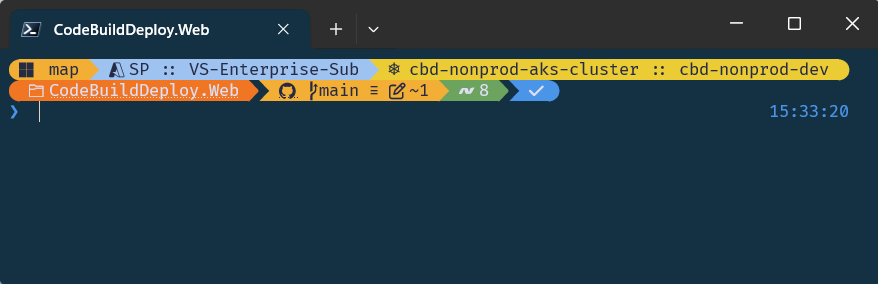
Our shell prompt has sections for the os, the currently logged on user, the current logged on Azure user (SP for service Principal) and the selected azure subscription, the currently selected kubernetes cluster and namespace, the current directory, git information for the current directory, various code details for the current directory and finally a display of the status of the last command. See my theme for more details.
Install the patched Fira Code font
The first thing we need to do is install the latest Fira Code Nerd font zip. Download it and extract the archive. Then right click "FiraCodeNerdFont-Regular.ttf" and select install.
The font then needs to be selected in Windows Terminal. If you have setup your Windows Terminal profiles as per settings.json, then go to Settings > PowerShell > Appearance and select FiraCode Nerd Font for Font face. Also do this for your WSL Ubuntu profile, under Settings > Ubuntu > Appearance.
    "editor.fontFamily": "FiraCode Nerd Font",
    "terminal.integrated.fontFamily": "FiraCode Nerd Font",
    "terminal.integrated.shellIntegration.enabled": false,
Installing posh-git
Next we'll install the posh-git PowerShell module. To do this run the following command from PowerShell:
Install-Module posh-git -Scope CurrentUser -AllowPrerelease -ForceThat will install to your local PowerShell profile 'Modules' folder. Next open your PowerShell profile with:
code $profileAdd the lines:
    Import-Module posh-git
    $GitPromptSettings.EnableStashStatus = $True
Installing oh-my-posh for PowerShell
Now we want to install and configure oh-my-posh for PowerShell. Again form a PowerShell terminal, run:
winget install -e JanDeDobbeleer.OhMyPoshDownload my theme and save it to your PowerShell profile directory under a Themes folder. Then open your PowerShell profile as above and add:
    $env:POSH_SESSION_DEFAULT_USER = [System.Environment]::UserName
    $DocumentsFolder = [Environment]::GetFolderPath('Personal')
    oh-my-posh init pwsh --config "$DocumentsFolder/PowerShell/Themes/.ohmy.theme.omp.json" | Invoke-Expression
Installing Terminal Icons
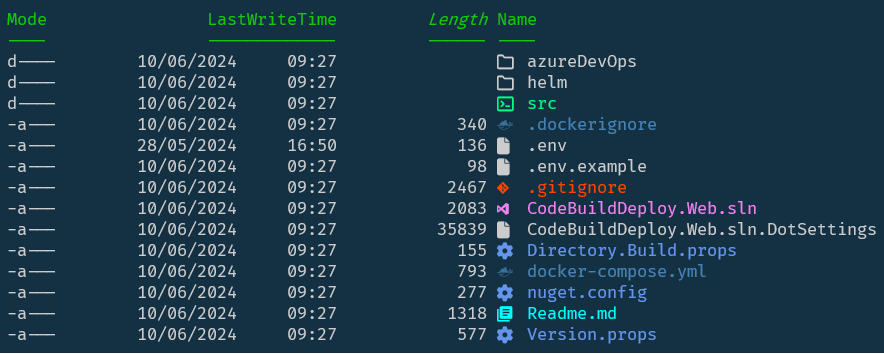
Now that we have icons with FiraCode Nerd font lets also use them in places like when we list the files in a directory. From the PowerShell terminal, install the module:
Install-Module -Name Terminal-Icons -Scope CurrentUser -Force -Repository PSGalleryThen open your PowerShell profile as above and add:
Import-Module -Name Terminal-IconsOpen a new PowerShell terminal window and run 'ls' to see the results.
Installing PSReadLine and CompletionPredictor
Finally for PowerShell we want to install PSReadLine and CompletionPredictor to get nice completion prompts. Again from a PowerShell terminal, run the following commands:
    Install-Module -Name PSReadLine -AllowPrerelease -Scope CurrentUser -Force -SkipPublisherCheck
    Install-Module CompletionPredictor -Scope CurrentUser -Force
Then open your PowerShell profile as above and add:
    Import-Module CompletionPredictor
    Set-PSReadlineKeyHandler -Key Tab -Function MenuComplete
    Set-PSReadLineOption -PredictionSource HistoryAndPlugin
    Set-PSReadLineOption -PredictionViewStyle ListView
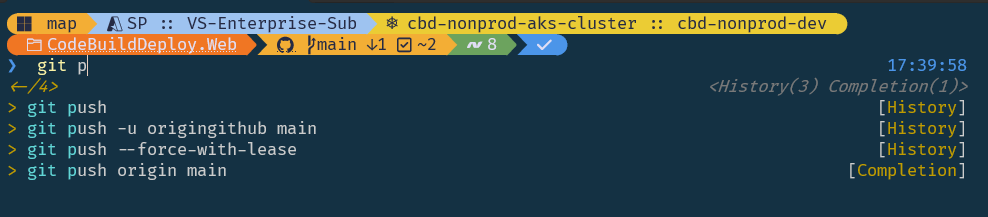
Open a new PowerShell terminal window and start typing a command 'git p'.
Installing oh-my-posh on WSL Ubuntu
Now that we have PowerShell looking nice, we want to make our WSL Ubuntu distro look just as good. From a WSL Ubuntu terminal, run the following commands:
    sudo apt install unzip
    curl -s https://ohmyposh.dev/install.sh | sudo bash -s
Now, copy the contents of my theme into a file in your home directory and save it.
curl -LO "https://raw.githubusercontent.com/MarkPollard/Tools.Settings_Profiles/main/.ohmy.theme.omp.json"Next, configure oh-my-posh to be loaded in your .bashrc and .profile. Add the line:
eval "$(oh-my-posh init bash --config ~/.ohmy.theme.omp.json)"You'll need to install kubectl if you dont already have it installed and configured.
    curl -LO "https://dl.k8s.io/release/$(curl -L -s https://dl.k8s.io/release/stable.txt)/bin/linux/amd64/kubectl"
    sudo install -o root -g root -m 0755 kubectl /usr/local/bin/kubectl
    rm kubectl
    az aks install-cli
    -- create symlink to kube config
    ln -s /mnt/c/Users/YOUR_USER_NAME/.kube ~/.kube
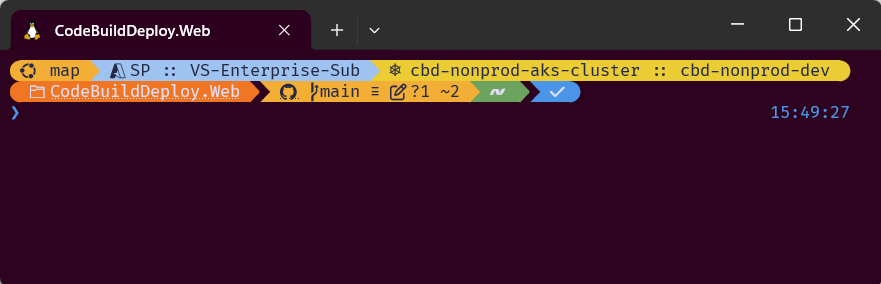
Open a new Ubuntu shell and see the results.
Tags:
About the author:

I am a senior software engineering and technical leader / Microsoft technologies technical architect, with a strong passion for continuous delivery. I am a firm believer in empowered teams with true DevOps cultures. I encourage responsibility over role, high quality and full stack engineers, showing ownership of the software and its behaviour, end to end, from requirements maturing all the way through to its continual and successful running in Production.